1 Overview
InventSim is a 3D simulation and design optimization framework for accurate and efficient solutions for various electromagnetic problems arising in the design of complex, high frequency circuits.
The package consists of a 3D geometry modeler, a 3D FEM solver and a set of tools for postprocessing the simulation results. The solver used in InventSim is a general 3D finite element package for solving closed or open domain electromagnetic problems arising in the analysis of microwave junctions, filters, couplers, multiplexers or antennas. From its origins, the software was targeting the design of high frequency, microwave and terahertz passive electronic components, but nowadays it can also be applied in solving problems arising in other fields, like photonics.
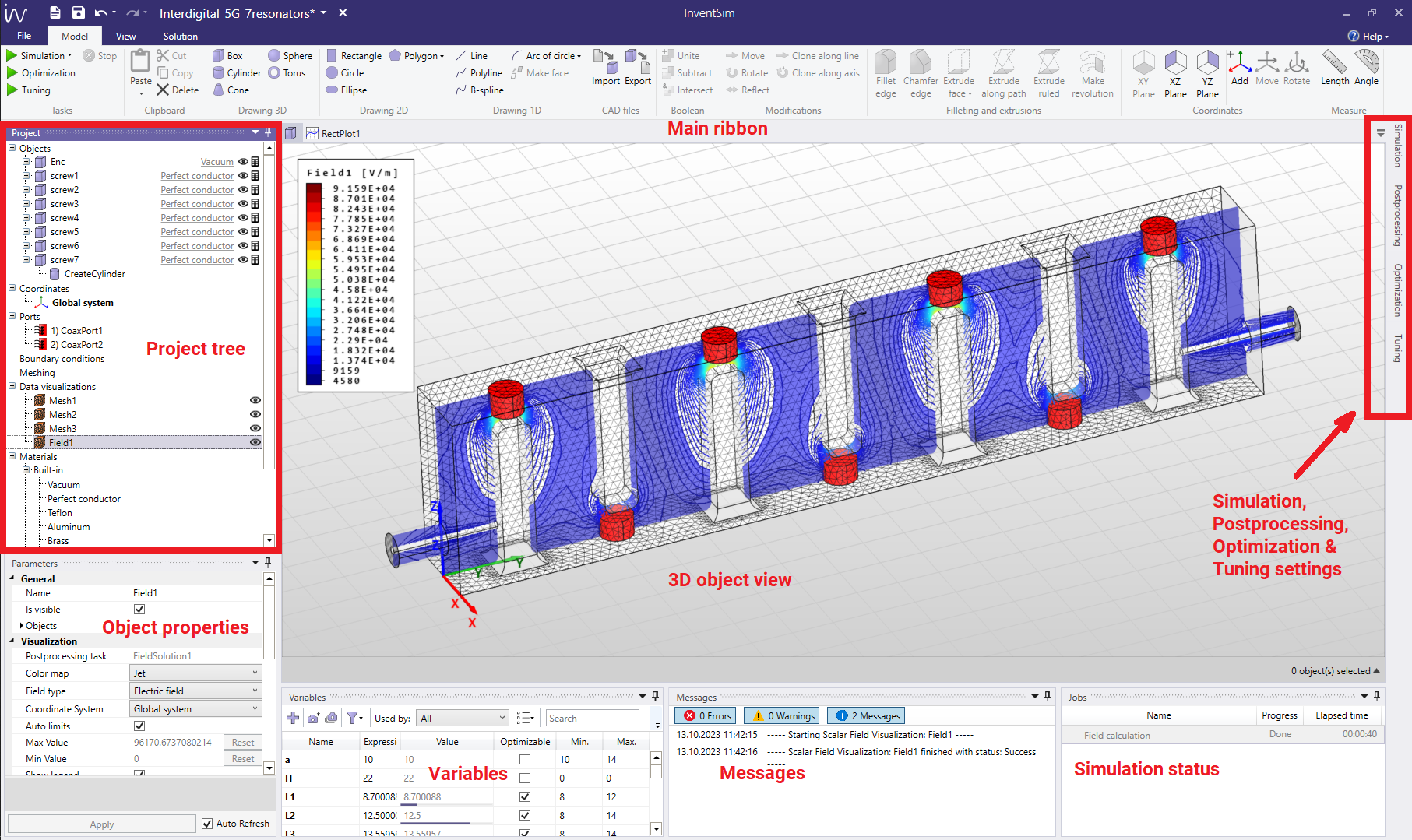
The graphical user interface of InventSim consists of few major parts:
-
• 3D view.
-
• Ribbon with tools (toolbar).
-
• Project tree.
-
• Object parameters panel.
-
• Simulation settings panel.
-
• Messages and simulation status panels.
as seen in the Fig. 1.1, the 3D view uses DirectX API to draw three-dimensional objects onto the screen. The 3D view allows you to:
-
• Create objects by drawing them.
-
• Manipulate existing objects via a mouse.
-
• Visualize additional data.
The toolbar in the upper part of the window allows a quick access to most of the modeler functions: performing operations on objects, adding and modifying coordinate systems, etc. The project panel is a tree panel, grouping and visualizing all project data such as structures (SimObjects), variables and coordinate system. Opject parameters’ panel displays parameters of currently selected objects/items.
The finite element method applied for Maxwell’s equations is one of the computational electromagnetic techniques that allows you to solve boundary-value problems [1, 2, 3, 4] for complex, user-defined structures which finds application in many fields of science. The standard finite element problem defined in InventSim is to solve the electric field vector wave equation
\begin{equation} \label {helm} \nabla \times \mu ^{-1} \nabla \times \emph {\textbf {E}} - \omega ^2 \epsilon \emph {\textbf {E}} = 0 \end{equation}
in the frequency domain with suitable, user-defined boundary conditions. Applying Galerkin’s method to the wave equation gets you a fundamental FEM equation (called weak form equation)
\begin{equation} \label {helm2} \int _V \emph {\textbf {W}} \cdot \left ( \nabla \times \mu ^{-1} \nabla \times \emph {\textbf {E}} - {k_0}^2 \epsilon _r \emph {\textbf {E}} \right ) dV = 0 \end{equation}
InventSim allows you to solve the equation (2) with field represented with a set of vector basis functions \(\emph {\textbf {W}}\) up to the third order (QT\(\backslash \)CuN - quadratic tangential and cubic normal) and curvilinear tetrahedral elements (second order unstructured mesh) [8, 10, 11]. To compute the transfer function, an approach presented in [9] is used.
1.1 Main features
3D Modeler main features list:
-
• Draw basic 3D and 2D objects using predefined basic shapes: box, cylinder, cone, sphere, torus, rectangle, circle, ellipse,
-
• Perform Boolean operations on objects: unite, subtract, intersect,
-
• Move, rotate, clone objects,
-
• Fillet of chamfer edge of an object,
-
• Extrude 2D objects,
-
• Define variables and equations,
-
• Define nested coordinate systems,
-
• Import/export of external 3D solids with .STEP file format.
3D FEM solver main features list:
-
• High order basis functions for accurate approximation of electromagnetic fields,
-
• Second order curvilinear tetrahedral elements for accurate modeling of curved geometries,
-
• Arbitrary shaped ports with TEM, TE/TM and hybrid modes,
-
• Handling of both lossy dielectric and conductor materials,
-
• Advanced fast frequency sweep algorithms,
-
• Antenna simulation including absorbing boundary conditions,
-
• Near-To-Far field transformation for open problems (radiation),
-
• Handling complex materials, such as gyromagnetic or Debye dielectrics.
EM Invent is based on industry-proven, highly-accurate higher order finite elements on curvilinear tetrahedral mesh. It takes advantage of these unique technologies:
-
• QuickTune and OptiFast: two techniques that speed up design and optimization. While OptiFast is used for automated optimization, QuickTune is used for iterative design tuning based on full wave computations.
-
• Stretchable-mesh: eliminates the response noise and allows EM Invent to bypass the time-consuming re-meshing every time the structure dimensions change. (elastic or deformable mesh)
-
• ZPO: zero-pole optimization that allows for fast and (often) automated design of pseudoelliptic microwave filters and optimization of their passband performance
-
• Interoperability with other apps using built-in Component Object Model (COM) interface.
1.2 Requirements and Installation
InventSim software is targeted for 64bit (x64) versions of Microsoft Windows OS. The installation requires administrative privileges. The software installation package comes with the main installer application: "EM_Invent_Simulator _Installer.exe". The prerequisites are installed automatically, if needed, by the main installer.
The software requirements of the simulator are:
-
1. 64-bit Windows operating system (including all updates),
-
2. .NET 4.5 Framework,
-
3. Sentinel HASP run-time environment (for Full version only)
-
4. Visual C++ run-time libraries.
The hardware requirements are:
-
1. 64-bit processor with AVX2 support,
-
2. 8GB of RAM memory,
-
3. at least 600MB of disk space.
The electromagnetic simulation procedure is a memory intensive process: a minimum of 16GB RAM memory is recommended for solution of small problems, while electrically large, complex circuits might demand hundreds of gigabytes of RAM ( 512GB). The RAM requirements are therefore problem-dependent.
In order to use the Full version of InventSim (see EULA at the end of this document) you should install the Thales Sentinel HASP Hardware Key drivers (bundled in the installation package) and have the valid hardware license key from EM Invent.